Plans for courses and camps
A session is often more than one start time. An ordinary lesson can have a warm-up, riding and horse care, and a camp day has arrival, a riding lesson, lunch and a trail ride. With a plan you split the session into blocks, each with a time and a title. Participants and parents see what happens, and trainers see who rides which horse.
Each block can also have its own resources. A horse booked only for the riding lesson from 09:30 to 10:30 is free for other courses the rest of the day.
The example on this page is a five-day riding camp. The same works for a lesson of an hour or two, and for a weekly course with long days, such as a school day with both riding and theory.
A camp is a course
You set up a camp as an ordinary course with one session per day. Registration and sales work as before, and you can still sell single days. You add the plan once the course exists, and it does not change any registrations.
Getting started
- Open the course. The Overview tab has a card called Plan.
- Press Split sessions into blocks.
The Plan tab opens, with the sessions in a list on the left. The tab only shows on courses that have at least one block, so the first time you get there from Overview. Once the course has blocks, the card says how many, and Open the plan takes you there.
Everything you do in the plan is saved at once. There is no draft, so participants see your changes straight away.
Building a day
Pick the session on the left, for example Session 1, and press Add block. Fill in:
- Title, such as "Riding lesson".
- Time, from and to.
- Description, if you like. Participants see it under the block.
- Who sees the block (see below).
- Resources the block needs (see "Resources on blocks" below).
Press Add block to save. The next block is suggested where the last one ends, so a full day goes quickly.
Blocks may overlap, for example when two groups ride at the same time. A block must lie within its session. If you need more time, choose More and Change when the session ends.
Once the sessions have blocks, Plan shows all the days side by side. Press Edit, or the pencil above a day, to change it.
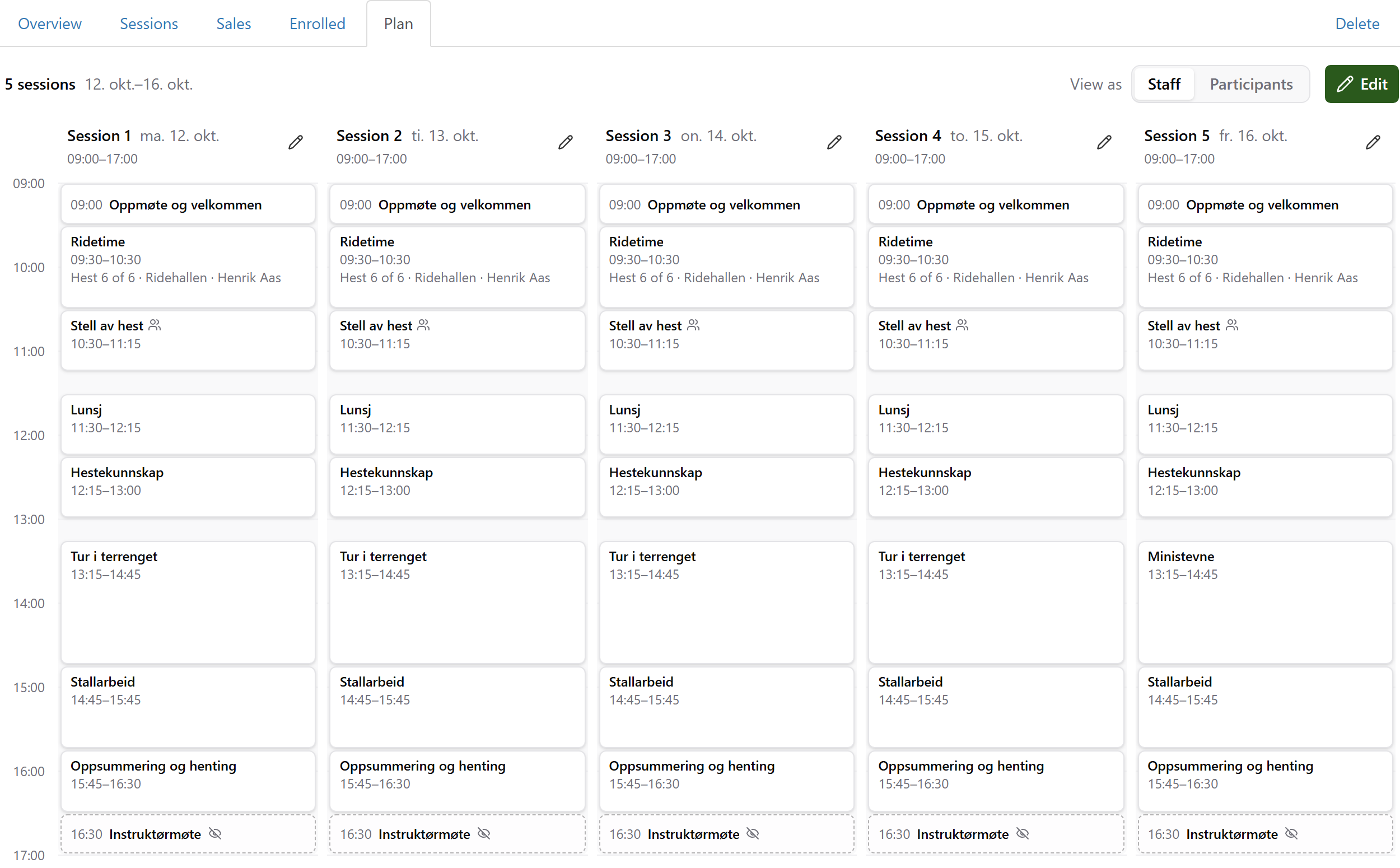
Who sees each block
Under Who sees the block you choose one of three:
- Everyone: shown on the sale page and to participants. New blocks get this choice.
- Participants: shown only to participants registered for the session.
- Staff: never shown to buyers or participants. Suits the trainers' meeting.
Blocks that are not for everyone are marked Participants only or Staff only.
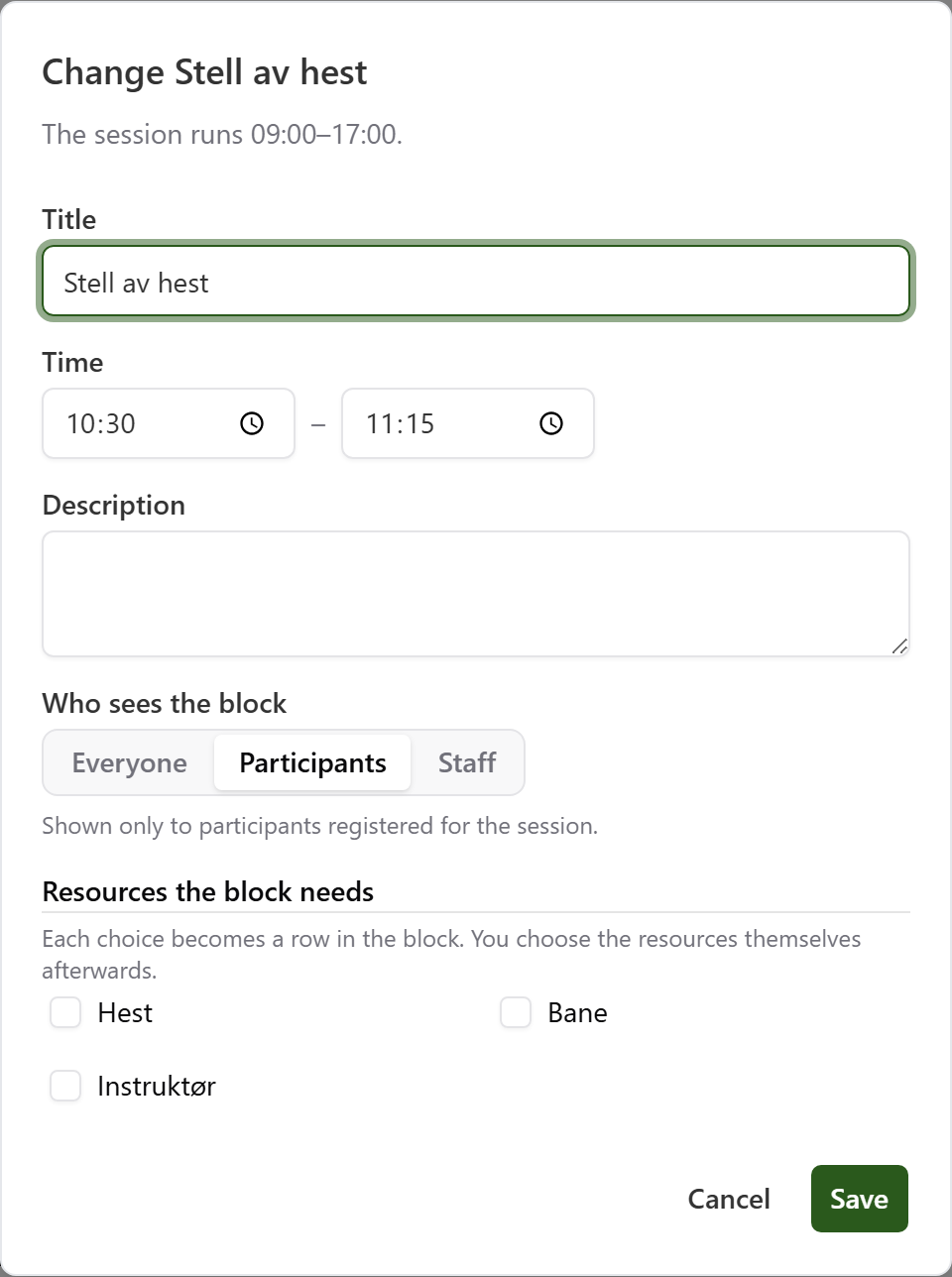
To see the plan as participants see it, press Back to the schedule and choose View as and Participants. Staff-only blocks disappear, and so do resources that are not shown to participants.
Resources on blocks
The course already has its resources, for example a horse per participant, an arena and a trainer. With a plan you decide which blocks need what. The riding lesson needs a horse, the arena and the trainer. Lunch needs nothing.
- Tick them under Resources the block needs when you create or change the block. Each tick becomes a row in the block.
- Choose the resources in the rows:
- For a resource shared by the block, such as the arena or the trainer, pick it right in the row.
- For a resource per participant, such as the horse, press Assign and pick a horse for each rider. It is saved as you choose.
- If participants share several resources, such as three horses for ten riders, press Assign or Change resources.
A resource booked elsewhere during the block's time cannot be chosen. The horse is only busy during the block, so other courses can use it the rest of the day.
Resources for the whole day
Some things should be booked all day, such as the indoor arena. Choose those in the Whole session card at the top of the session. Press Change, tick what is needed all day, and pick the resource in its row.
Don't book the same thing twice. If the indoor arena is booked all day, it cannot also be booked for the riding lesson.
If you have already booked a resource for the whole session and want it only in some blocks, press Move to blocks in its row. Choose the blocks, and the booking for the whole session is removed.
When something is taken
If a resource cannot be booked, the message says what it is already booked for, with the course and the time. Choose another resource, or change the other booking first.
Where horses are chosen
Resources on blocks are chosen only in Plan on the web. Trainers see them in the app but cannot change them there. Once the horses are on the blocks, they can no longer be chosen in the session report in the app. If your trainers choose horses in the app on the day, tick the horse under Whole session instead of on the blocks. The horse is then booked for the whole day.
Copying the plan
You don't have to build every day by hand.
To the other days of the course
- Finish the first day.
- Choose More and Copy the plan to other sessions.
- Under To the sessions, the coming sessions without blocks are already ticked. Change the selection if you like.
- Tick Include the resources if the arena and the trainer should come along.
- Press Copy to … sessions.
Include the resources brings the resources shared by a block, such as the arena and the trainer. The horses don't come along, since participants can differ from day to day. If anything cannot be booked, nothing is copied, and the message shows what was taken.
If a session you copy to already has blocks, you must tick Replace the blocks of … sessions that already have blocks. Blocks with resources cannot be replaced. Remove the resources first.
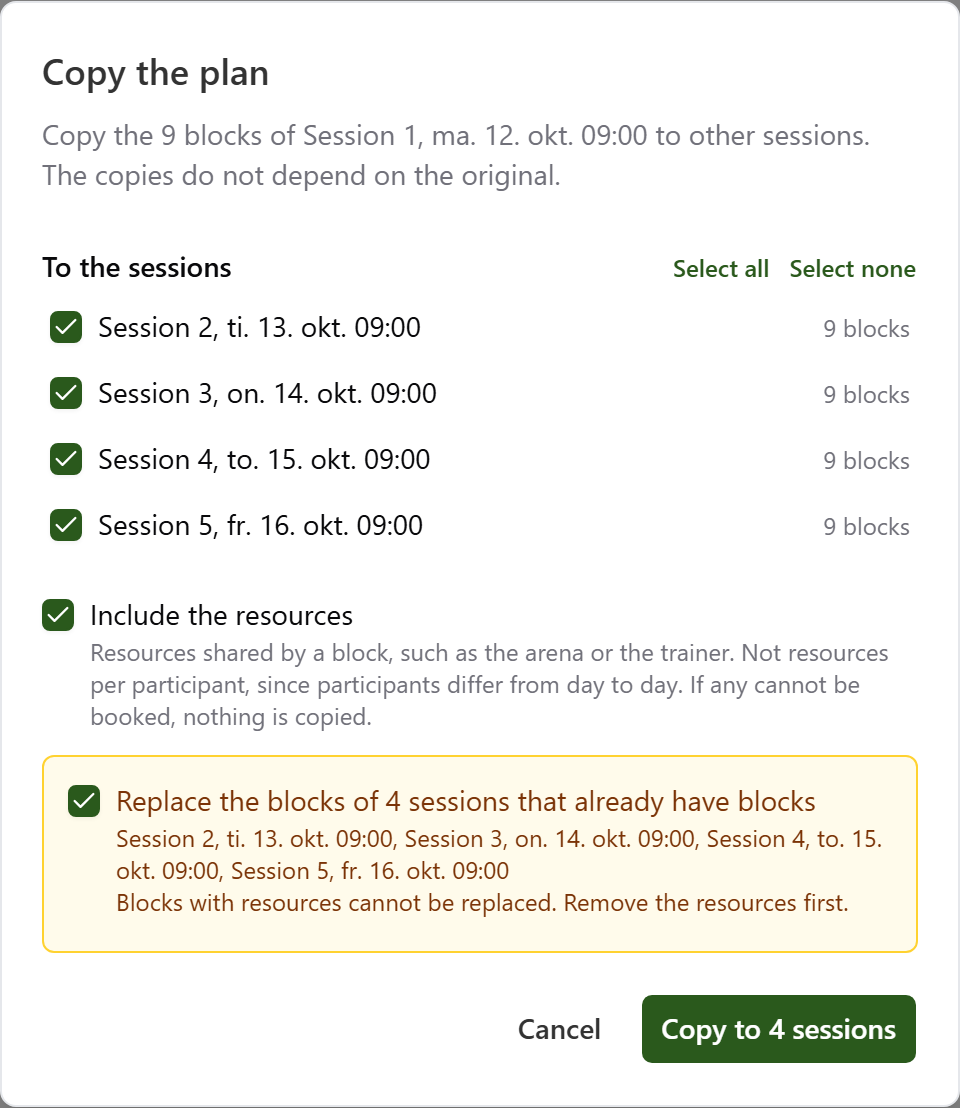
The copies do not depend on the original. If you change Monday afterwards, the other days stay as they are. Change what differs on each day, such as a small show on Friday.
From another course
For next year's camp, or week two of a summer camp:
- Choose More and Fetch a plan from another course.
- Pick the course under Course.
- Which session goes to which suggests a mapping day by day. Change whatever does not fit, or choose Do not copy for a day.
- Choose Include the resources if you like, and press Copy to … sessions.
If it is unclear which of this course's resources matches one in the other course, you are asked.
When you create the next course
If the course has a plan, Create next course shows a section called Plan. Give the sessions the same plan as in the previous course and Include the resources on the blocks are ticked already. If the sessions of the previous course have different plans, you choose which one all the new sessions get, or No plan.
Templates cannot hold a plan. To use a plan again, copy it.
Changing the plan
Every change shows for participants at once.
- Moving a block: Press ⋯ on the block and Change, and change the time. If the new time collides with another booking, you can choose Move anyway and remove the resources that collide.
- Cancelling a block: Press ⋯ and Cancel. Add a short Reason if you like, such as "rain". Participants see the reason. The block stays in the plan as cancelled, and the resources it had booked become free.
- Restoring: Press ⋯ and Restore. The resources are booked again. If one of them was taken in the meantime, you can restore the block without it.
- Deleting: Press ⋯ and Delete. This only works when the block has no resources. Participants may already have seen the block, so cancel it instead if it is not going ahead.
What participants and parents see
On the sale page, people thinking of signing up see the plan for each day under Plan, with the blocks that are open to everyone. Resources are not shown there.
In the app, parents find the plan under their child's registration. They tap the course under Home or Activities, pick the day and see Plan for the day:
- each block with its time and description
- the resources on the block, such as the trainer and the arena
- their child's own horse
- cancelled blocks, struck through and with the reason
- a moved block, with the old time struck through
Blocks added or changed the same day get a mark, such as New today, Moved today or Updated 14:05.
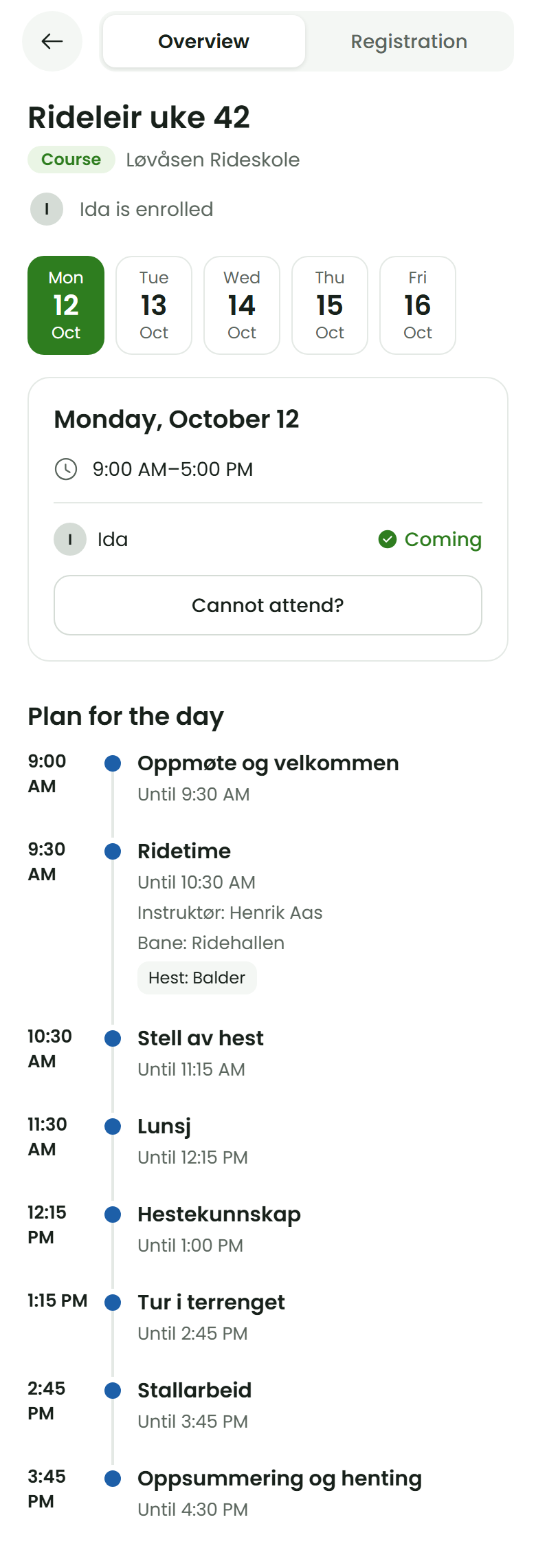
Participants never see staff-only blocks, and never other participants' horses or answers. Resources set not to show to participants are not shown. You choose that on the course's resources with Show to participants.
What trainers see
In the provider app, trainers see Your day on Home. They use the arrows to move between days. For each session they are on, it shows:
- the blocks with their times, staff-only blocks included
- You are on this on the blocks they are assigned to
- each rider's horse
- Participants and their answers, with what participants answered when they registered, such as allergies
Your day only shows sessions where the trainer is assigned as a resource. In the session report in the app, Plan for the session shows the blocks and their resources. They can be seen there, but not changed.